Free VPN to Change Location: What to Know Before You Choose
Learn how a free VPN changes your online location, what to check before installing one, and how to use it safely.
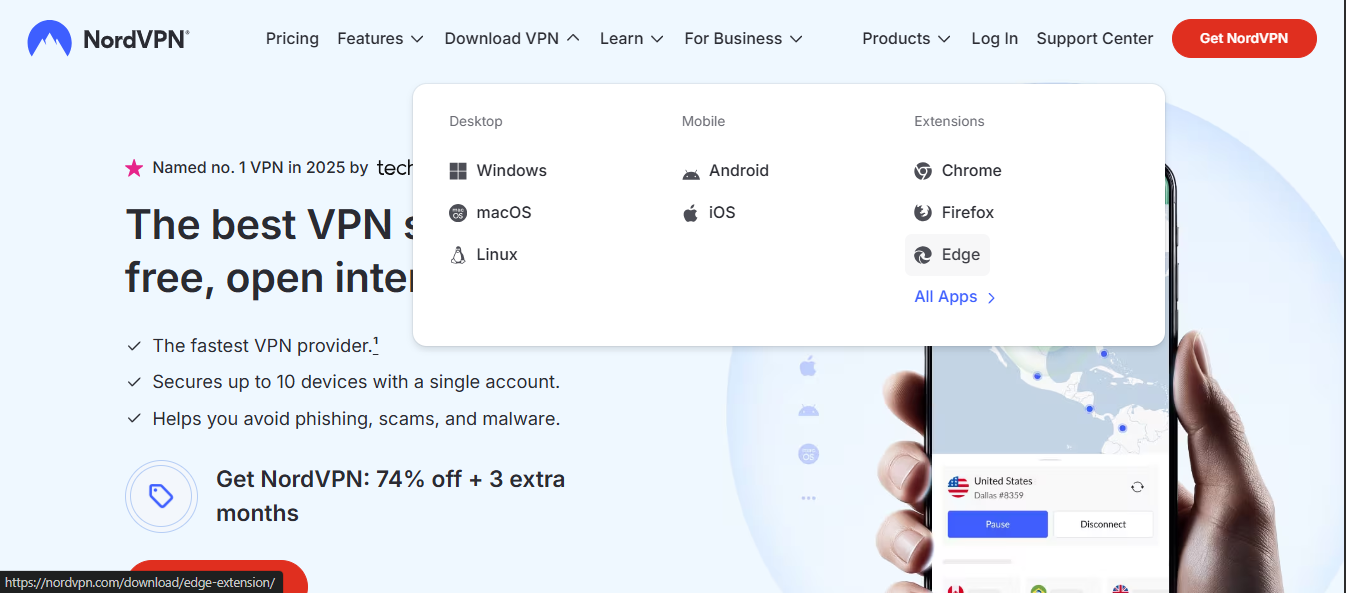
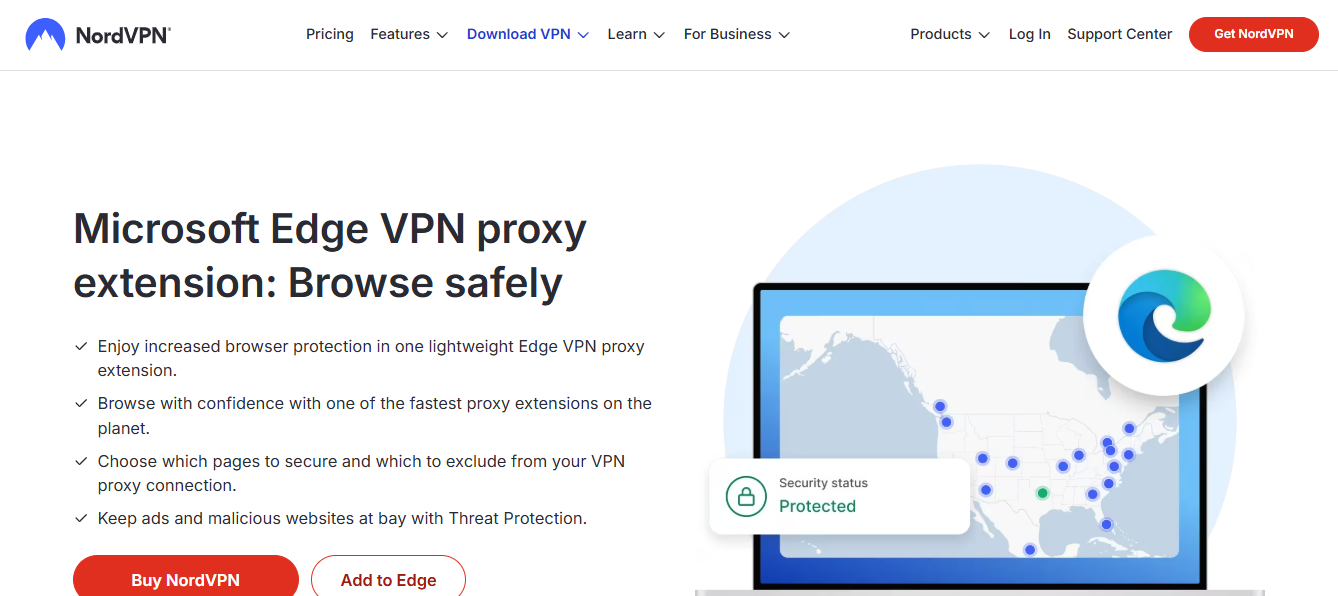
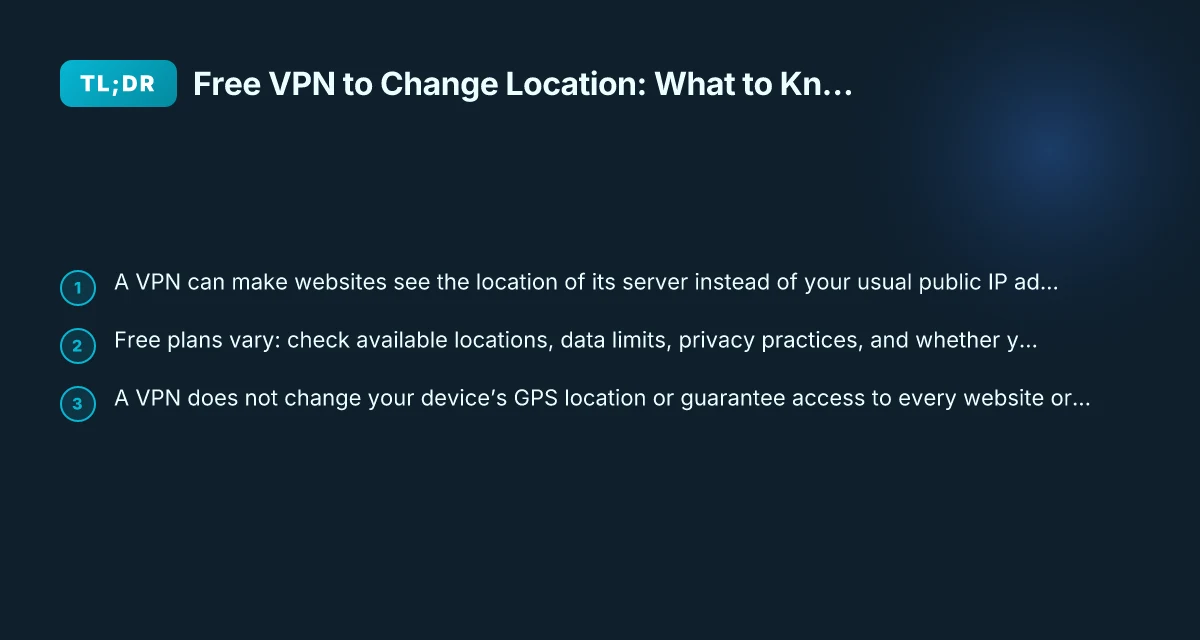
A free VPN to change location can route your internet traffic through a server in another region, making your public IP address appear to come from there. Some free VPNs let you choose a location manually. Others connect you automatically or offer only a small selection. Before installing one, check its privacy policy and limitations, and remember that a VPN changes your IP-based location, not your GPS location.
How a VPN affects your apparent location
| Connection type | Apparent IP location | Traffic routing | Location change | Main limitation |
|---|---|---|---|---|
| Direct internet connection | Your internet provider’s location | Through your provider | No | IP may reveal an approximate location |
| VPN connected to a server | VPN server’s location | Through the VPN server | Yes | Websites may use other location signals |
| VPN connected to a nearby server | Nearby server’s location | Through the selected server | Yes | May not match a specific city |
| VPN connected to a distant server | Distant server’s location | Through the selected server | Yes | Connection may be slower |
| VPN disconnected | Your internet provider’s location | Through your provider | No | VPN protection is no longer active |
| VPN with an app’s location permission | VPN server location and app-provided location | Through the VPN, with app location access | IP location changes; app location may not | App permissions can expose location |
| VPN with location permission denied | VPN server’s location for IP-based checks | Through the VPN | Yes, for IP-based checks | Some apps may not work as expected |
Compiled November 2026; check the provider's site for current details.
| VPN | Obfuscation | From / month | Plan | Free plan | Refund | Alipay | UnionPay | Crypto | Website opens in China | Trustpilot | |
|---|---|---|---|---|---|---|---|---|---|---|---|
 ZoogVPN | Turn on manually Shadow | $2.49/mo | 27 months: $59.99 | Yes | 7 days | ✓ | ✓ | ✓ | ✓ | Official site blocked; our special link opens (4.4 s) | 4.2/5 (195 reviews) |
 NordVPN | Turn on manually Obfuscated Servers / NordWhisper | $3.49/mo | 27 months: $94.23 | No | 30 days | ? | ✗ | ✓ | ✓ | ✗ Blocked | 4.2/5 (51,628 reviews) |
 ExpressVPN | ✓ On by default all servers | $3.00/mo | 28 months: $84 | No | 30 days | ✗ | ✗ | ✓ | ✗ | ✗ Blocked | 4.4/5 (29,706 reviews) |
 Surfshark | ✓ On by default Camouflage, with OpenVPN | See site | See site | No | 30 days | ✗ | ✗ | ✗ | ✓ | ✗ Blocked | 4.3/5 (31,823 reviews) |
 Proton VPN | Turn on manually Stealth, free plan too | $2.99/mo | 12 months: $35.88 | Yes | 30 days | ✗ | ✗ | ✗ | ✓ | ✗ Blocked | 2.1/5 (1,040 reviews) |
 Astrill VPN | Turn on manually StealthVPN / OpenWeb | $12.50/mo | 24 months: $300 | No | See site | ✗ | ✗ | ✗ | ✓ | ✗ Blocked | 1.3/5 (110 reviews) |
 Private Internet Access | Turn on manually Shadowsocks, OpenVPN only | $2.03/mo | 40 months: $81.2 | No | 30 days | ✗ | ✗ | ✗ | ✗ | ✗ Blocked | 4.2/5 (11,033 reviews) |
 CyberGhost | Turn on manually selected servers | $2.19/mo | 28 months: $61.32 | No | 45 days | ✗ | ✗ | ✗ | ✓ | ✗ Blocked | 4.0/5 (24,178 reviews) |
 PureVPN | Turn on manually switch to OpenVPN | $1.69/mo | 60 months: $101.55 | No | 31 days | ? | ? | ✗ | ✓ | ✗ Blocked | 4.4/5 (17,994 reviews) |
 AdGuard VPN | ✓ On by default TrustTunnel | $2.99/mo | 24 months: $71.76 | Yes | 30 days | ✓ | ✗ | ✓ | ✓ | Official site blocked; our special link opens (3.7 s) | 4.3/5 (290 reviews) |
 Mullvad | Turn on manually QUIC / Shadowsocks / LWO | $5.61/mo | €5/mo | No | 14 days | ✗ | ✗ | ✗ | ✓ | ✗ Blocked | 3.2/5 (192 reviews) |
 Windscribe | Turn on manually Stealth / WStunnel | $5.75/mo | 12 months: $69 | Yes | See site | ✗ | ✗ | ✗ | ✓ | ✗ Blocked | 4.7/5 (13,355 reviews) |
 StrongVPN | Turn on manually Scramble, OpenVPN TCP | See site | See site | No | 30 days | ✓ | ✗ | ✗ | ✗ | ✗ Blocked | 4.4/5 (2,695 reviews) |
 LightXtreme 闪连 | Not listed | $7.08/mo | 12 months: $84.99 | Yes | 30 days | ✓ | ✓ | ✓ | ✓ | ✓ Yes (3.5 s) | No page |
Prices checked 2026-11-10 on each vendor's pricing page (cheapest long plan, USD). Check the vendor's checkout for the final price.
Obfuscation checked 2026-11-14 on each vendor's site and help center: "on by default" = nothing to set; "turn on manually" = switch protocol or mode in settings; "not listed" = the vendor describes no obfuscation.
Payment methods checked 2026-11-10 on each vendor's payment pages: all 14 take cards and PayPal; ✗ = not listed, ? = the vendor's own pages disagree.
China access: whether the official website opens from mainland China networks (tests the website only, not the VPN connection). Last checked 2026-11-18 01:02 Beijing time.
Trustpilot score and review count checked 2026-11-10.
How a VPN changes your online location
When you connect to a VPN, your internet traffic travels through the VPN provider’s server. Websites and online services generally see the server’s public IP address rather than your original public IP address. If that server is in another country or region, your IP-based location may appear to be there.
This can be useful for privacy on public Wi-Fi or for testing how a website appears to visitors in another region. However, it does not make you anonymous. Websites may still identify you through account details, cookies, browser settings, or other signals.
A VPN also does not normally change your phone’s GPS location. Apps that use GPS, Wi-Fi networks, or device permissions may still determine where you are. You may need to review location permissions separately, and you should not assume that an IP change will alter location-based results in every app.
What to look for in a free VPN
“Free” does not necessarily mean unlimited, private, or suitable for every task. Review the provider’s terms before connecting, especially if you plan to use the VPN regularly. NordVPN Download Windows 11: Download and Install the App
Check for:
- Manual location selection: Confirm that you can choose a specific country or server rather than being assigned one automatically.
- Available locations: Free plans may include fewer locations than paid plans. A provider may advertise several choices, but check that the locations you need are currently available.
- Data and speed limits: Free services can restrict traffic, connection speed, or access to certain servers.
- Privacy practices: Read what the provider says it collects, how long it keeps data, and whether it shares information with others.
- Security details: Look for clear information about encryption, supported VPN protocols, and features such as a kill switch.
- App permissions: A VPN needs permission to create a VPN connection, but unrelated permissions may deserve closer scrutiny.
Do not rely on promotional phrases such as “no logs” or “unlimited” by themselves. Look for an understandable privacy policy and clear terms describing what the free plan includes.
Comparing free VPN options
Search results mention options such as Planet VPN, Riseup, and Ignite VPN. Those references are not enough to verify current features, availability, or suitability, so check each provider’s official app listing and current terms before choosing.
| What to compare | Why it matters |
|---|---|
| Manual server selection | You need this if you want to pick a particular location |
| Free locations | The server region affects the IP-based location websites may see |
| Traffic limits | Limits can interrupt browsing or other data-heavy use |
| Privacy policy | It explains what information the service collects and retains |
| Device support | Make sure the provider offers an app for your operating system |
| Connection reliability | A slow or unstable server may make everyday browsing difficult |
Some search results describe Planet VPN as offering free locations and unlimited traffic, while community posts mention other free VPN apps. Treat these statements as claims to verify, not guarantees: free-plan details can change, and experiences may vary by device and region. Checkpoint VPN: What It Does and How to Choose a Client
Free VPN features to compare
| What to check | Why it matters | Prefer | Watch for |
|---|---|---|---|
| Data allowance | Limits how much you can browse or stream | Clearly stated allowance | Unclear or very small limits |
| Server locations | Determines which locations you can choose | Locations listed before signup | Few locations or paid-only servers |
| Speed limits | Affects browsing and video quality | Disclosed limits | Congestion or unexplained slowdowns |
| Privacy policy | Explains what data the service collects | Clear data-handling details | Vague logging practices |
| Independent audits | Can help verify security claims | Public audit information | Claims without supporting details |
| App permissions | Can reveal data beyond your IP | Only necessary permissions | Unnecessary access to location or contacts |
| Ads and upsells | May affect usability and privacy | Transparent business model | Aggressive ads or unclear trade-offs |
| Device support | Determines whether your device can use the VPN | Apps for your devices | Unsupported platforms |
| Kill switch | Helps prevent traffic exposure if the VPN drops | Available and enabled | No protection on connection loss |
Compiled November 2026; check the provider's site for current details.
How to change your location with a VPN
The general steps are similar on Android, iPhone, Windows, and Mac:
- Choose a VPN provider and review its privacy policy and free-plan limits.
- Install the official app from a trusted app store or the provider’s official website.
- Open the app, create an account if required, and approve the system’s VPN connection request.
- Select a server location from the available list. If the app does not offer manual selection, it may not meet your needs.
- Connect, then check your public IP location using a reputable IP-checking service.
- Disconnect when you no longer need the VPN.
If a website still shows your usual region, it may be using information other than your IP address, such as stored cookies, an account profile, or GPS data. You can try a private browser window or review the site’s location permissions, but results are not guaranteed. Fortinet VPN: What It Is, How It Works, and How to Set It Up
Limitations and safe use
A VPN can help protect traffic between your device and the VPN server, but it shifts trust from your internet provider to the VPN provider. The provider may be able to process some connection information, so its privacy practices matter.
Also keep in mind:
- A free VPN may have fewer server choices or slower connections.
- A VPN does not hide information you share while logged into an account.
- Some websites and streaming services may block VPN connections or apply their own location checks.
- A VPN may not change GPS-based location in apps.
- Free services should not be assumed to be safe simply because they are available in an app store.
For sensitive tasks, assess whether the provider’s security and privacy terms meet your needs. Avoid entering private information into unfamiliar apps or relying on a VPN as your only security measure.
Steps for changing your location with a VPN VPN Free Extension Edge: How to Choose One for Microsoft Edge
| Step | What to do | What to check | If it does not work |
|---|---|---|---|
| 1. Choose a VPN | Review privacy, data limits, and server options | Terms and app permissions | Choose another service |
| 2. Install the app | Download it from an official app store or provider | Correct app and publisher | Avoid unofficial downloads |
| 3. Create an account | Follow the provider’s signup process | Data requested at signup | Stop if requests seem unnecessary |
| 4. Connect to a server | Select a listed location and connect | Connection status | Try another available server |
| 5. Check your IP location | Use a reputable IP-checking service | Country or region shown | Reconnect or contact support |
| 6. Review app permissions | Restrict access not needed for the VPN | Location permission settings | Disable unnecessary permissions |
| 7. Test the intended service | Open the website or app you want to use | Whether it accepts the connection | Check its rules and location settings |
| 8. Disconnect when finished | Turn off the VPN if you no longer need it | Connection status | Confirm normal connectivity returns |
Compiled November 2026; check the provider's site for current details.
Recommendation
For a free VPN to change location, prioritize a provider that lets you select a server manually, explains its privacy practices clearly, and states the free plan’s limits. Verify that the location you need is available before installing the app. Use the VPN to change your IP-based location, but do not expect it to alter GPS data, guarantee anonymity, or work with every website.